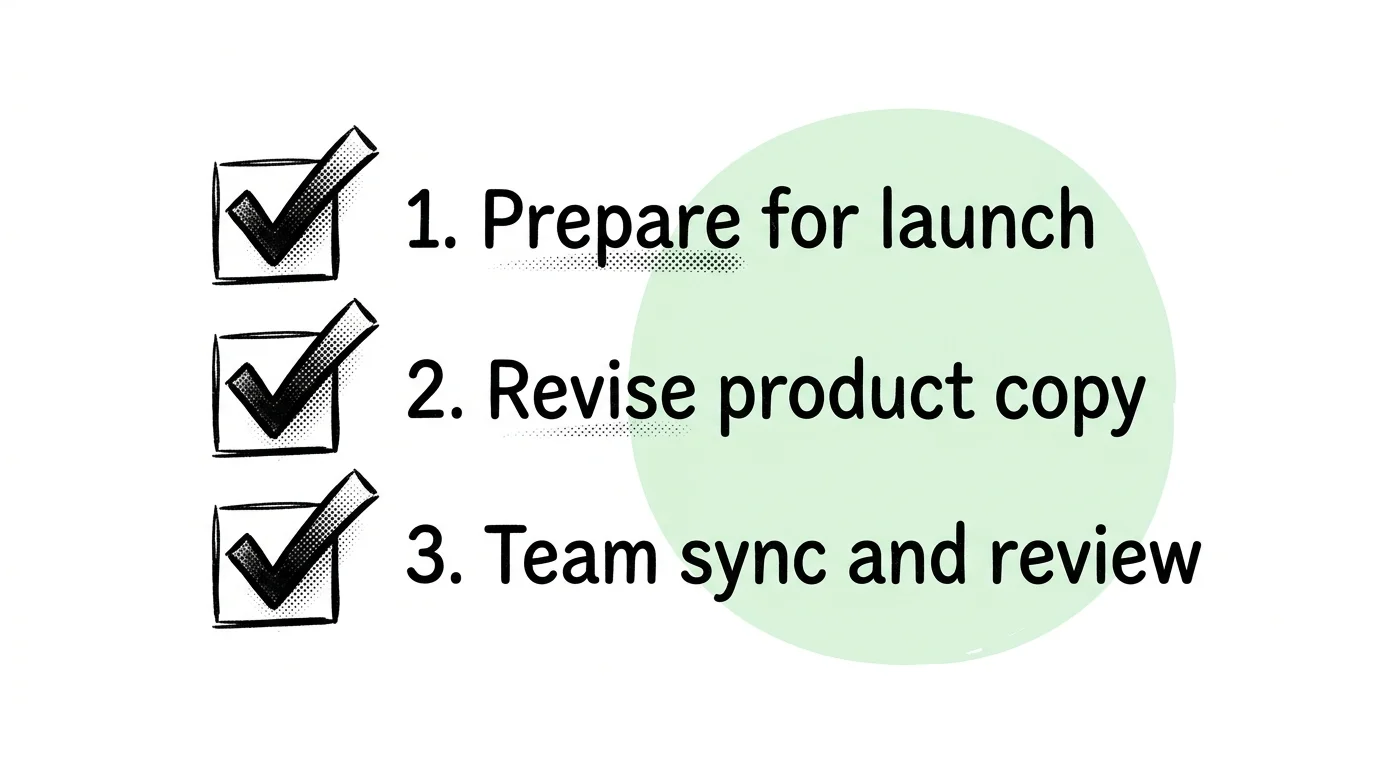
Have you ever clicked on a 30-minute YouTube video just to find a single piece of information, only to end up sitting through endless self-promotions, sponsorship slots, and generic introductions? As video content becomes the dominant medium for sharing ideas, tutorials, and news, the ability to quickly filter and digest this information has become a critical productivity skill. The solution is simple: generating a structured bullet-point summary.
A bullet-point summary reduces a long video timeline into a list of key concepts, statistics, and conclusions that can be scanned in seconds. In this article, we will show you how to easily extract these summaries from any video, explain how to clean up transcript formatting, and share tips for incorporating these summaries into your daily learning routine.
💡 Tip: Skip the manual steps. You can extract structured, bullet-point outlines with hyperlinked timestamps directly inside YouTube using the AI Summary Chrome Extension.
The Power of Bullet-Point Outlining
Our brains are optimized to process structured visual structures rather than continuous auditory information. Listening to a lecture requires sustained focus over time, whereas reading a bulleted list allows you to instantly recognize relationships between concepts. Bullet-point summarization offers three main benefits:
- Cognitive Offloading: Instead of holding multiple verbal facts in your short-term memory as the speaker talks, a summary holds them on the page for you. This allows you to evaluate arguments as a whole.
- Rapid Relevance Filtering: Reading a 5-point summary lets you decide immediately whether the video contains the specific details you need, or if you should look for a better source.
- Searchable Archiving: Plain text bullet points can be indexed by your note-taking apps, making the video's contents searchable years down the line.
How to Manually Generate a Bullet-Point Summary
If you prefer not to use dedicated extensions, you can generate a bullet-point summary manually using general-purpose AI tools like ChatGPT or Gemini. Here is the step-by-step workflow:
- Open the Transcript: In the video's description box on YouTube, click "Show Transcript". This opens a panel on the right side of the screen displaying the spoken text alongside timestamps.
- Copy the Text: Click the three vertical dots in the transcript header and select "Toggle Timestamps" to hide timecodes. Drag your cursor to select the entire text and copy it.
- Submit to an LLM: Paste the raw transcript into your AI chat interface.
- Structure Your Prompt: Use a clear prompt to ensure the output is structured and clean. For example:
"Please summarize the following YouTube transcript into a concise bullet-point list. Group related points under 2-3 logical sub-headers. Strip out any filler words, sponsor mentions, and repetitions."
While this method works, it has limitations. Long videos (over 30 minutes) often exceed the text input boundaries of free AI interfaces. Additionally, copying and pasting raw transcripts manually is tedious if you watch dozens of videos daily.
Transitioning to 1-Click Automated Outlines
To eliminate manual copying, dedicated browser extensions integrate the extraction and summarization directly into the YouTube interface. When you open a video, the extension reads the caption track in the background, segments it into logical paragraphs, and runs it through optimized API endpoints.
Advanced summarizers let you select different detail levels. For instance, a "Concise" mode produces exactly 3–5 bullet points summarizing the core thesis—perfect for short tutorials. A "Deep-Dive" mode generates a detailed hierarchical outline mapping out every section of a 2-hour lecture. Hyperlinked timestamps are automatically prefixed to each point, enabling you to jump directly to any topic of interest in the video player with a single click.
How to Organize Your Summary Archive
Summaries are most valuable when integrated into a unified database. When exporting your outlines, use a consistent template. Each note should contain:
- Context Metadata: Video title, speaker, publication date, and the original YouTube link.
- The Quick Summary: A single bolded sentence summarizing the main takeaway.
- The Outline: The structured bullet points with clickable timestamp links.
- Action Items: A checkbox list at the bottom indicating how you plan to use this information (e.g. "Try this code snippet," "Read referenced paper").
Conclusion
Getting a bullet-point summary of a YouTube video is the fastest way to bridge the gap between video entertainment and active learning. Whether you copy transcripts manually or use automated 1-click extensions, shifting from passive watching to active scanning will save you hours of screen time every week.
Previously: Best YouTube Summarizer Chrome Extensions for Productivity ← · Next read: The Rise of AI YouTube Tools: How to Watch Less & Learn More →
Related: Best YouTube Summarizer Chrome Extensions for Productivity · Why YouTube Video Summarizers Are Essential for Busy Builders